
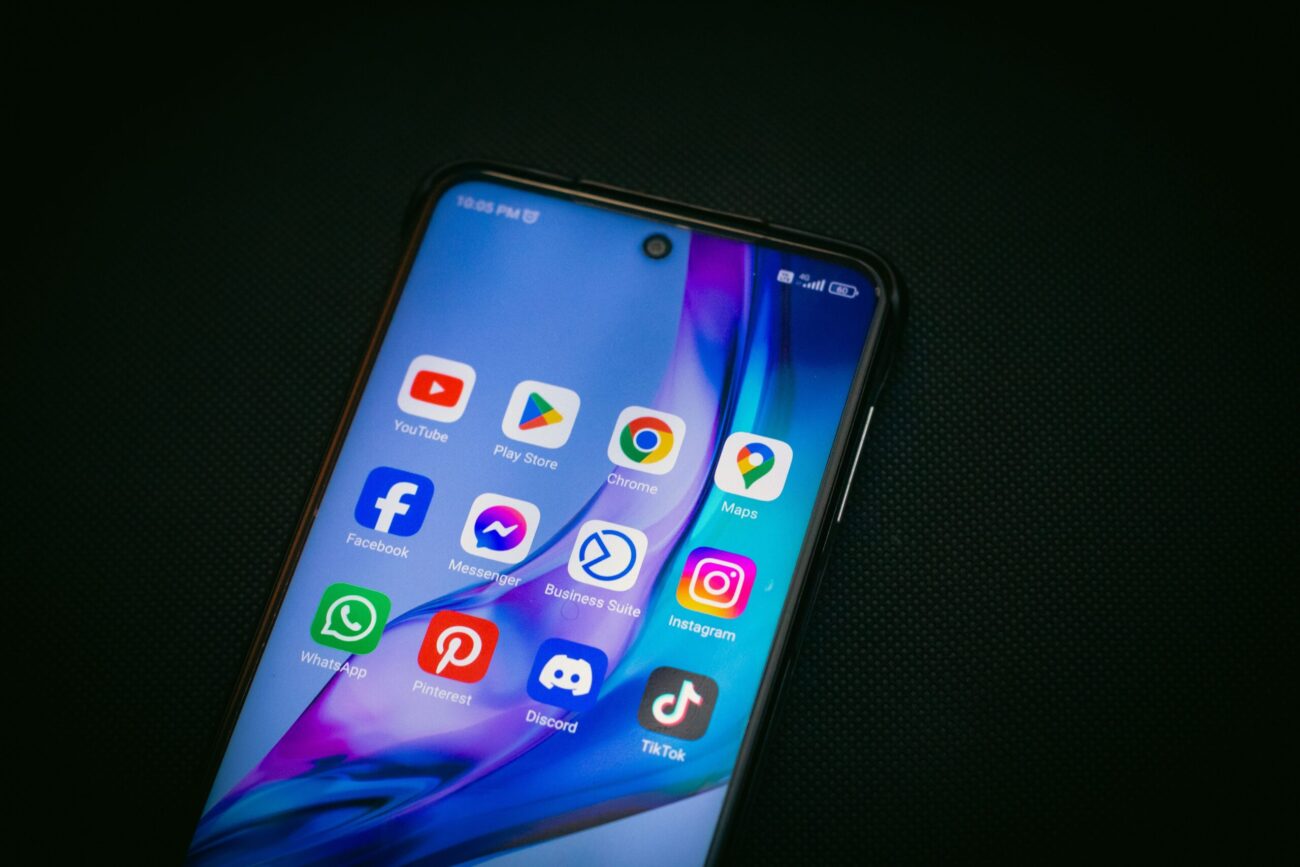
Android 17 is now available, bringing a new generation of software, security updates, and system changes to supported Android devices. Google released Android 17 to the Android Open Source Project (AOSP) and supported Pixel devices on June 16, 2026, with the operating system using API level 37. As Android users adjust to the latest software changes, the wider smartphone industry is also preparing for major releases, including the iPhone 18 release date and why the standard model may not arrive until 2027.
For Android users, however, installing the latest operating system is only the first step. If you use sports betting, bingo, gaming, or other account-based apps, there are several additional checks worth making before signing in or entering payment information.
An application can appear to install normally and still experience problems with login pages, browser redirects, permissions, notifications, storage, or network connections. These issues can become especially frustrating when an app depends on Android System WebView or sends users between an app and a browser during authentication.
Before installing or trusting a sports or bingo app on an Android 17 device, it is therefore important to check the operating system, security patch, WebView, permissions, storage, battery settings, browser configuration, regional version, and installation source.
Android 17: Check Your Software Version First
The first step is confirming that your phone is actually running Android 17.
On most stock Android phones, go to Settings > About phone > Android version. Depending on the manufacturer, you should be able to see the Android version, Android security update, Google Play system update, and build number.
You can then open Settings > System > Software updates to check whether another update is waiting to be installed.
Google recommends connecting your device to Wi-Fi and ensuring that the battery has sufficient charge before installing a major software update.
Samsung devices may place the update option under Settings > Software update, while Xiaomi, Tecno, and other manufacturers may use different names or locations.
The important information to verify includes:
- Android version
- Android security update
- Google Play system update
- Build number
- Device model
- Regional firmware
Android 17 confirms that the phone is running the latest major Android generation, but the security patch level is also important.
The Android 17 release entered AOSP with a default security patch level of July 1, 2026. Google’s separate July security bulletin, published on July 6, identifies July 5, 2026, as the full monthly patch level.
Do not install firmware designed for a different phone model, carrier, or region simply to get Android 17 earlier. Incorrect firmware can cause problems with connectivity, payment certification, carrier services, and future software updates.
Non-Pixel Android phones may also receive Android 17 later because manufacturers have their own testing and distribution schedules.
Android System WebView Can Affect App Login
One of the less obvious Android 17 compatibility issues involves Android System WebView.
Many applications do not handle every web-based function entirely within their own interface. Login verification, payment pages, account recovery, support pages, and other features may rely on WebView or a browser-based Custom Tab.
Android System WebView allows web content to appear inside an application, while Custom Tabs use the device’s browser infrastructure. If WebView or the default browser is outdated, an application can open successfully but still display a blank page, fail to load a verification screen, become stuck during a redirect, or show buttons that do not respond.
Before using a newly installed sports or bingo application, open Google Play and check for updates to Android System WebView and your default browser.
Chrome is commonly involved in Android’s browser-based authentication process, so keeping it updated can help prevent compatibility problems.
After updating, test three things:
- Open a web-based page inside the application.
- Follow any browser hand-off during login.
- Return to the original application and confirm that your session remains intact.
A successful test should return you to the correct page without repeatedly requesting your credentials.
Test the App Before You Trust It
You do not need hours of testing to identify many common app problems. A simple ten-minute test can reveal whether an application behaves properly on your Android 17 phone.
Start by opening the app while connected to Wi-Fi. Navigate through the login process and visit several important sections.
Then switch to mobile data and repeat the test.
You should also:
- Rotate the phone’s screen.
- Minimize the application for about 30 seconds.
- Reopen the app.
- Move between different sections.
- Test a web-based page.
- Check whether the login session survives.
- Watch for repeated crashes or reloads.
- Check whether the phone becomes unusually hot.
Pay attention to blank screens, repeated sign-ins, slow loading, unexplained redirects, and pages that disappear after the application has been placed in the background.
These symptoms do not automatically mean Android 17 is incompatible with the application. The problem could be caused by an outdated WebView component, poor connectivity, aggressive battery management, insufficient storage, or a problem with the application itself.
For example, when testing an HTML5 bingo lobby such as Melbet bingo Ethiopia, users should check whether the lobby loads correctly, whether the browser hand-off works, and whether the application returns to the expected screen after authentication.
A frozen loading screen is generally a technical or connectivity issue rather than an indication that the game’s underlying mechanics have changed.
Clear the Cache Before Clearing App Storage
If an application starts behaving strangely after an Android update, clearing its cache can sometimes resolve temporary loading problems.
Go to:
Settings > Apps > See all apps > [App name] > Storage and cache > Clear cache
The exact menu can vary between manufacturers. Clearing the cache removes temporary files without normally removing the account itself. However, Clear storage or Clear data is different. It can reset the application’s local information and sign you out.
That means it is better to try clearing the cache first. If the application continues to malfunction, check whether a new version is available in Google Play before taking more drastic troubleshooting steps.
Review App Permissions Carefully
Android 17 also gives users an opportunity to review what applications are allowed to access.
Open Settings > Security and privacy > Privacy > Permission manager on supported Android versions. Samsung and other manufacturers may use slightly different menu names.
Review permissions for applications that request access to:
- Location
- Camera
- Microphone
- Notifications
- Photos and videos
- Contacts
- Files and media
The principle is simple: an application should have access only to information required for a feature you actually use.
For example, a camera permission may make sense if an application requires document verification. However, a permission request should have a clear purpose.
Android’s Privacy Dashboard can also help users understand which applications have recently accessed sensitive permissions. If an application requests access that appears unrelated to its advertised purpose, stop and investigate before continuing.
Leave Enough Storage for Updates
Insufficient storage can create problems that look like application compatibility issues.
Sports, bingo, and gaming applications may download additional files after installation. Android itself also needs free space for temporary files, updates, cached content, and system processes.
Open Settings > Storage and check how much space remains.
If storage is nearly full, remove unnecessary downloads, unused applications, duplicate media, or other files before installing a new application. Having adequate free storage can make both Android 17 and individual applications operate more reliably.
Check Battery Restrictions
Android’s battery management can also affect applications. Open the application settings and look for App battery usage. In many cases, the recommended or optimized setting is sufficient.
However, applications that require certain background functions may behave differently when aggressive battery restrictions are applied.
You should not automatically select unrestricted battery usage for every application. Instead, use the default optimized setting unless there is a clear reason to change it. If notifications arrive late, an application repeatedly reloads, or background activity stops unexpectedly, battery management may be worth checking.
Make Sure You Have the Correct Regional App
Another important consideration is the country or regional version of an application.
Sports betting apps and gaming platforms can offer different currencies, payment methods, markets, language settings, verification requirements, and terms depending on the country they serve.
Before entering your email address, telephone number, password, or payment information, check that the application and website correspond to the correct region. An old bookmark, APK file, search result, or shared installation package may send you to a different regional version.
For users accessing platforms such as betting Ethiopia, for example, the country-specific version should remain consistent when moving from the sports section to account verification and the betting interface.
Live sports markets can change because of match events, suspensions, or updated odds. That is different from a technical issue involving the login or browser hand-off. If the regional version suddenly changes, check your installation source, VPN settings, browser cookies, and account configuration before entering sensitive information.
Browser Settings and Deep Links Matter
Android applications sometimes rely on the default browser to complete authentication. You can check the default browser through:
Settings > Apps > Default apps > Browser app
Make sure the browser you expect to use is selected and updated. Broken deep links, aggressive cookie blocking, or browser configuration problems can interrupt a login even when Android itself is functioning normally. After signing in, the browser should return you to the correct application or page without sending you to an unfamiliar domain.
This is particularly important when an application handles payment information or account credentials.
Be Careful With APK Files From Unknown Sources
One of the biggest risks when installing Android applications is downloading APK files from unverified websites. Android allows users to install applications from outside Google Play, but this should be treated carefully.
On many Android phones, the relevant setting can be found under Settings > Apps > Special app access > Install unknown apps. Samsung and other manufacturers may use a different path.
If you must install a legitimate APK from a verified source, give installation permission only to the specific browser or file manager that needs it. After installation, turn the permission off again.
Do not enable installation from unknown sources for every application on your phone. Most importantly, avoid installing modified or cracked versions of sports, bingo, financial, or other account-based applications. These packages can create unnecessary security and privacy risks.
Keep Google Play Protect Enabled
Google Play Protect provides another layer of protection by scanning applications for potentially harmful behavior.
Keep Play Protect enabled and pay attention to warnings that appear when installing applications. If an application triggers a security warning, do not simply dismiss it because the app is popular or because someone shared the installation file with you.
Verify the publisher, download source, application name, and official website before proceeding.
Android 17 Is Part of a Bigger Technology Shift
The arrival of Android 17 comes at a time when technology companies are increasingly competing to deliver more powerful hardware and software experiences.
Consumers are not only watching operating system updates. They are also following major developments across smartphones, gaming, and consumer electronics.
Gaming hardware is also evolving alongside mobile technology. Sony’s latest developments are attracting attention from console players, particularly around its premium hardware strategy. You can read more about Sony’s PS5 Pro and the $750 price tag and what the company’s latest hardware push means for gamers.
Sony’s broader design direction is also worth watching. Its anniversary hardware demonstrates how manufacturers are increasingly treating technology products as both functional devices and pieces of design. Sony’s 10th Anniversary 1000X collection explores that trend in more detail.
These developments highlight a wider reality: consumers now expect their devices to work across increasingly complex software ecosystems. Keeping an operating system updated is therefore only one part of maintaining a reliable digital experience.
Final Checks Before Installing a Sports or Bingo App
Android 17 provides a modern platform, but users should still take a few minutes to verify an application before trusting it with personal information or payment details.
Check that your Android version and security patch are current. Update Android System WebView and your browser. Test the application over Wi-Fi and mobile data, review its permissions, make sure there is enough storage, and check battery restrictions if the app repeatedly reloads. Confirm that the regional version is correct and that any browser hand-off returns you to the expected application or website.
Finally, be cautious with APK files downloaded outside official app stores and keep Google Play Protect enabled. The most important lesson is that a successful installation does not necessarily mean an application is ready to use. On Android 17, compatibility depends on several components working together, including the operating system, WebView, browser, permissions, network connection, storage, battery controls, and the application’s own infrastructure.
Taking a few minutes to check these areas can prevent frustrating login problems and, more importantly, help protect your personal information when using sports betting apps, bingo apps, gaming, and other account-based applications.
